
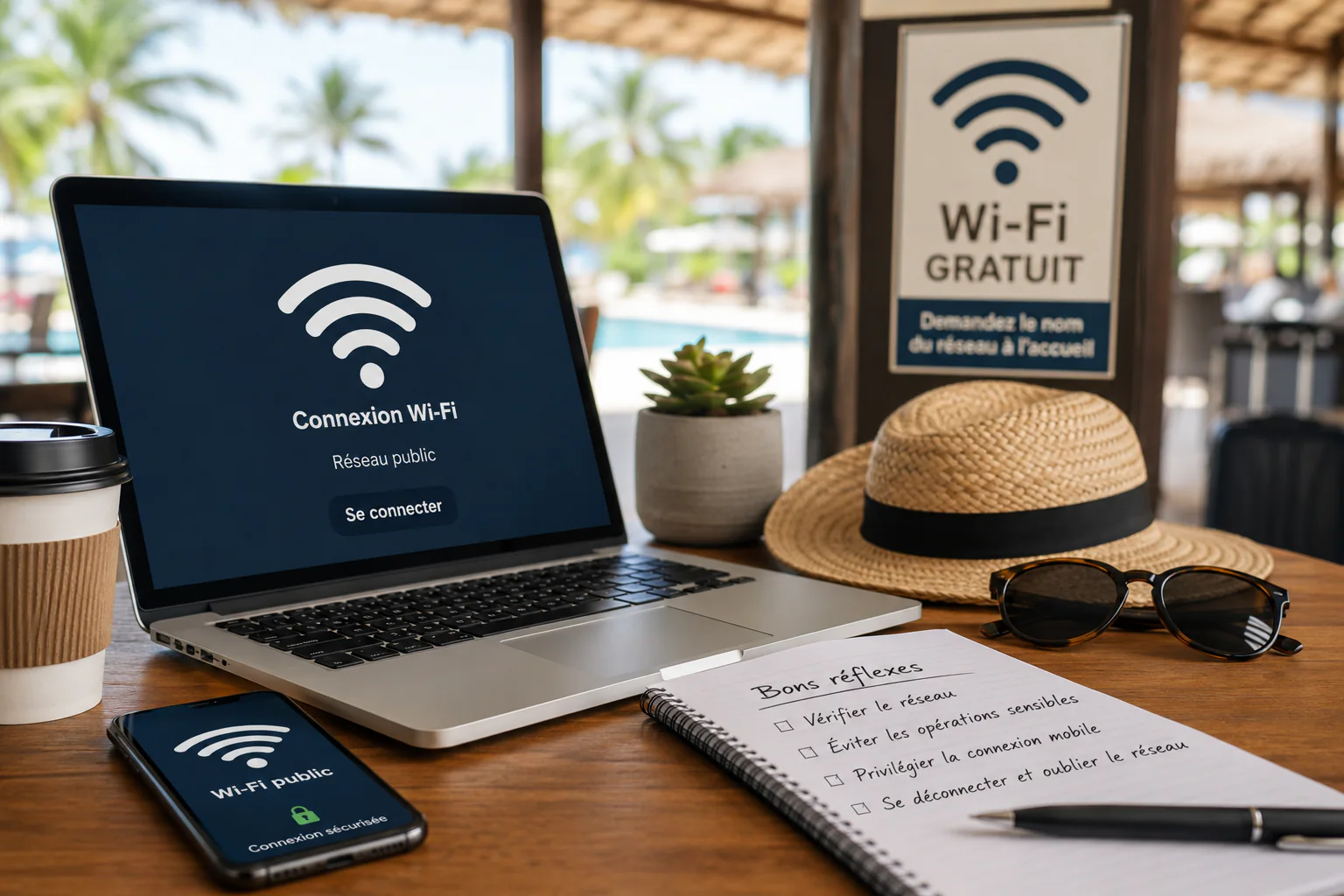
In a train, airport, hotel, campsite or restaurant, free Wi-Fi can be very convenient. It allows you to check a route, look up information or stay in touch with relatives without using your mobile data allowance.
Public networks are not necessarily dangerous. However, they offer fewer guarantees than a personal connection and may sometimes be poorly configured, imitated or used to collect information.
A few simple precautions can reduce the risks without avoiding these connections altogether.
Why should you be careful with public Wi-Fi?
At home, your Wi-Fi network is normally protected by a password and used by a limited number of people. In a public place, the situation is different: many unknown devices may be connected to the same network.
It is also possible to create a wireless access point with a name resembling that of a hotel, campsite or railway station. Someone with malicious intentions could, for example, use a name such as “Free Hotel Wi-Fi” to encourage visitors to connect.
The fact that a network appears in your phone’s list does not therefore mean that it genuinely belongs to the place where you are.
A login portal may also request an email address, telephone number or other personal details. In that case, only provide information that is genuinely necessary.
Check the exact name of the network
Before connecting, make sure that you have selected the correct network.
The official name may be displayed:
- at the establishment’s reception desk;
- in your room or on a document provided when you arrive;
- on a sign in the building;
- in the service’s official application or website;
- by a member of staff.
When in doubt, simply ask for confirmation. This check is particularly useful when several networks have almost identical names.
You should also be cautious if a network appears to belong to the establishment but asks for unusual information, requires you to install an application or attempts to download a file before giving you Internet access.
Use your mobile connection for important tasks
When your phone has a reliable 4G or 5G signal, its mobile connection is generally preferable for sensitive activities.
You can use your phone directly or temporarily enable its personal hotspot to connect a laptop or tablet. The hotspot should be protected with a sufficiently strong password and disabled when it is no longer needed.
This solution is particularly recommended when you need to:
- check your bank account;
- make a payment;
- send confidential documents;
- access an administrative account;
- change a password;
- read professional email;
- send important personal information.
When the task can wait, the simplest option may be to postpone it until you have access to a trusted connection.
Avoid sensitive activities on a public network
Public Wi-Fi can be useful for ordinary activities such as checking the weather, looking up opening times or reading general information.
However, as far as possible, avoid entering:
- bank card details;
- an important password;
- medical information;
- tax or administrative details;
- confidential professional documents;
- a copy of your identity document.
Applications also require caution. Using your bank’s application instead of its website does not turn a public network into a trusted one.
Limit the information provided to the login portal
Some networks display a welcome page before allowing you to browse the Internet. This page may ask you to accept terms of use or provide certain details.
Before continuing, make sure the request is consistent with the service being offered.
Wi-Fi access should not normally require:
- your email password;
- your bank details;
- a copy of your identity document;
- the installation of unknown software;
- permission to access your contacts or photos.
When some fields are optional, only complete those that are essential. Also check any boxes relating to commercial use or the sharing of your data.
Check the address of the website you are visiting
When visiting a website, check its address in the browser’s address bar.
The presence of https and the associated security symbol indicates that communication between your device and the website is encrypted. This protection is important, but it does not guarantee on its own that the website is legitimate.
A fraudulent website may also use a secure connection. You should therefore check the full address, particularly before entering a password or personal information.
Rather than following a link received in a message, open your browser and enter the service’s address yourself, or use its official application.
Prepare your devices before travelling
A few settings adjusted before your holiday can help you use your devices more safely.
Install updates
Keep the following up to date:
- the operating system on your phone, tablet or computer;
- your browser;
- your applications;
- your security software, when you use one.
Updates regularly correct weaknesses that could otherwise be exploited.
Enable two-factor authentication
When this option is available, enable two-factor authentication on important accounts, particularly:
- your main email account;
- your Apple, Google or Microsoft accounts;
- social media accounts;
- administrative or professional services.
This means that discovering your password may not be enough for someone to gain access to the account.
Use different passwords
Avoid using the same password for several services. If one account is compromised, your other accounts will remain better protected.
A password manager can help you create and store different passwords without having to remember them all.
Disable automatic connections
Check that your device does not automatically join every known or available Wi-Fi network.
This feature is convenient in everyday use, but it may cause your device to connect without you noticing. It is better to choose the network yourself.
Stay alert for unusual behaviour while connected
Disconnect if you notice unusual behaviour, such as:
- pages opening by themselves;
- numerous unexpected alerts;
- a sudden request to reset a password;
- a security warning in the browser;
- a redirection to an unrelated website;
- a file downloading automatically;
- a request to install an unknown application.
Do not ignore a security warning simply to access the network more quickly. It may be caused by a temporary problem, but it is safer to stop using the connection than to continue without understanding the warning.
Can a VPN make the connection safer?
A VPN creates a protected connection between your device and a remote service. It can be useful, particularly when it is provided by an employer to access professional tools.
However, you should not urgently install the first free VPN promoted by an advertisement or by the network’s login portal. The VPN provider may itself have access to some information relating to your browsing.
A VPN does not protect against every type of mistake. It does not automatically identify a fraudulent website, scam message or malicious application.
When you already use a reputable and properly configured VPN, you can enable it on a public network. Otherwise, using your mobile connection is often the simpler option.
Forget the network after use
When you no longer need the public Wi-Fi:
- disconnect your device;
- open the Wi-Fi settings;
- select the network you used;
- choose the option to forget it or prevent your device from joining it automatically.
This prevents your phone or computer from reconnecting later without asking you.
You can also disable Wi-Fi when you are not using it, particularly while travelling.
Be careful with shared computers
A computer provided in a hotel, library or another public place requires even more caution than a shared Wi-Fi network.
You may not know which programs are installed or which information could remain stored after you leave.
Avoid using it to access important accounts. When this cannot be avoided:
- never save your password;
- use a private browsing window;
- sign out manually from every service;
- close all windows before leaving;
- do not leave downloaded documents on the computer.
Private browsing limits the information stored by the browser, but it does not guarantee that the computer itself is secure.
What should you do after using a suspicious connection?
Connecting to a suspicious network does not automatically mean that your accounts have been compromised. However, it is worth acting quickly if you entered sensitive information or noticed unusual behaviour.
From a trusted connection:
- change the passwords of the accounts you used;
- begin with your main email account;
- review recent sign-ins and devices linked to your accounts;
- sign out any sessions you do not recognise;
- monitor your messages and security notifications;
- check your bank account if you made a payment;
- update and scan the device concerned.
If you notice an unfamiliar bank transaction, contact your bank promptly. When a professional account may be affected, also inform the person or department responsible for IT security.
Good habits in a few simple steps
Before joining a public Wi-Fi network, take a few seconds to check:
- that the network name matches the one provided by the establishment;
- that you are not being asked for excessive information;
- that your device is up to date;
- that automatic connection is disabled;
- that the task you intend to perform is not sensitive.
While using the network:
- check website addresses;
- refuse unexpected downloads or installations;
- do not ignore security warnings;
- use your mobile connection for important accounts.
After using the network:
- sign out of the services you visited;
- forget the network;
- disable Wi-Fi when it is no longer needed.